

This article will serve as an informative guide and give you a clear understanding of how to perform silent or interactive installs and uninstalls of ScanSnap Home using the PowerShell App Deployment Toolkit v4. The PowerShell App Deployment Toolkit (PSADT) is a collection of PowerShell scripts and functions designed to simplify the deployment of software applications. It helps IT administrators automate tasks such as installing, configuring, and uninstalling applications, and it is commonly used for software packaging and deployment within enterprise environments. PSADT can be used in conjunction with tools like Microsoft Endpoint Configuration Manager (formerly SCCM), Intune, or other deployment systems.
How to Install ScanSnap Home Using the PowerShell App Deployment Toolkit v4
- Open Windows PowerShell by Right-Clicking on Windows PowerShell and selecting Run as Administrator
- Enter the following commands:
Set-ExecutionPolicy Bypass -Scope CurrentUser |
Install-Module -Name PSAppDeployToolkit -Scope CurrentUser |
Import-Module PSAppDeployToolkit |
New-ADTTemplate -Destination 'C:\Temp' -Name 'ScanSnapHome' -Show |
- Navigate to: https://scansnap.fujitsu.com/global/dl/index-off.html
- Select a Scanner
- Select Target OS
- Click Display Software List
- Download the WinSSHOfflineInstaller_x_y_z.exe to a folder created at (C:\Downloads)
- Manually launch the ScanSnap Home installer, wait until you see the End User License Agreement
- Copy the “%LocalAppData%\Temp\SSHomeDownloadInstaller” folder to C:\Downloads
- Cancel the ScanSnap Home Setup Wizard
- Copy the “C:\Downloads\SSHomeDownloadInstaller\Prerequisite” folder to “C:\Temp\ScanSnapHome\Files\”
- Copy the “C:\Downloads\SSHomeDownloadInstaller\download“ folder to “C:\Temp\ScanSnapHome\Files\”
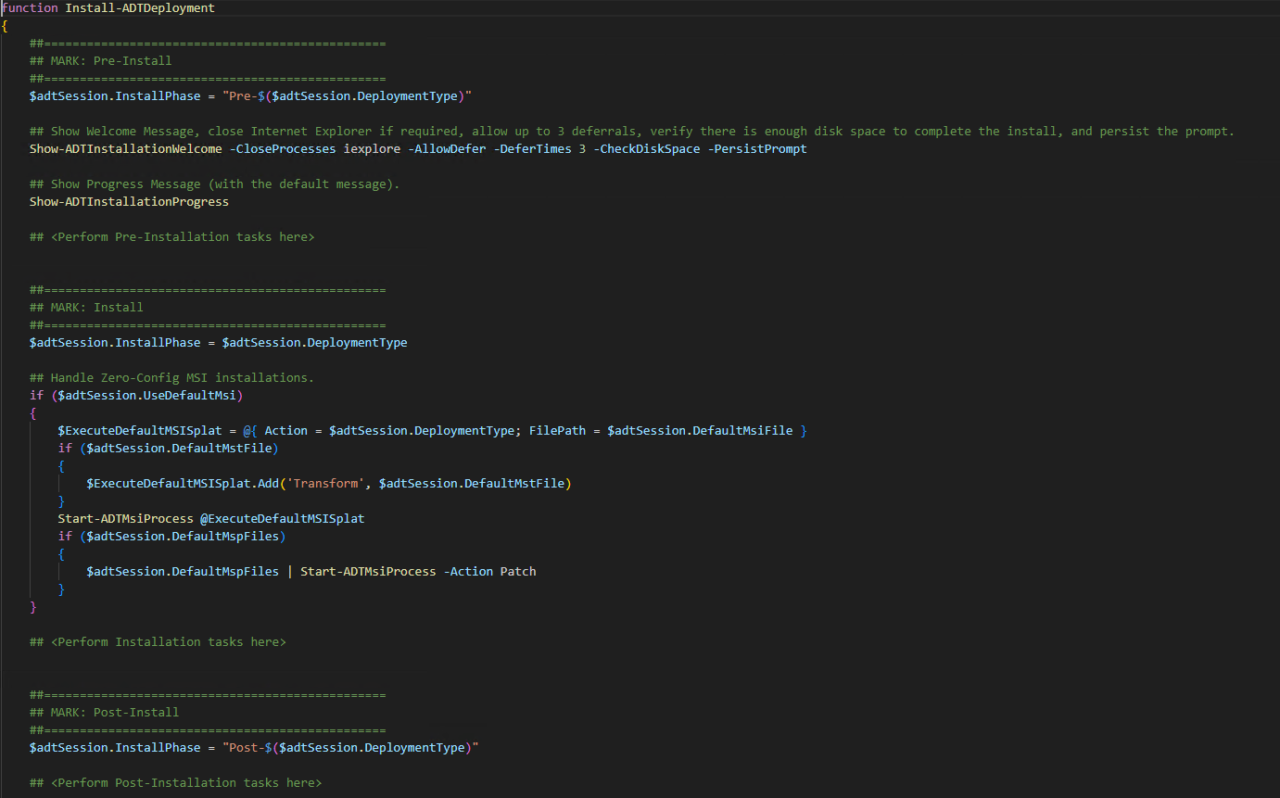
- Replace the default Invoke-AppDeployToolkit.ps1 template with the script below
<#

.SYNOPSIS
PSAppDeployToolkit - This script performs the installation or uninstallation of ScanSnap Home.

.DESCRIPTION
- The script is provided as a template to perform an install, uninstall, or repair of an application(s).
- The script either performs an "Install", "Uninstall", or "Repair" deployment type.
- The install deployment type is broken down into 3 main sections/phases: Pre-Install, Install, and Post-Install.

The script imports the PSAppDeployToolkit module which contains the logic and functions required to install or uninstall an application.

.PARAMETER DeploymentType
The type of deployment to perform.

.PARAMETER DeployMode
Specifies whether the installation should be run in Interactive (shows dialogs), Silent (no dialogs), NonInteractive (dialogs without prompts) mode, or Auto (shows dialogs if a user is logged on, device is not in the OOBE, and there's no running apps to close).

Silent mode is automatically set if it is detected that the process is not user interactive, no users are logged on, the device is in Autopilot mode, or there's specified processes to close that are currently running.

.PARAMETER SuppressRebootPassThru
Suppresses the 3010 return code (requires restart) from being passed back to the parent process (e.g. SCCM) if detected from an installation. If 3010 is passed back to SCCM, a reboot prompt will be triggered.

.PARAMETER TerminalServerMode
Changes to "user install mode" and back to "user execute mode" for installing/uninstalling applications for Remote Desktop Session Hosts/Citrix servers.

.PARAMETER DisableLogging
Disables logging to file for the script.

.EXAMPLE
powershell.exe -File Invoke-AppDeployToolkit.ps1

.EXAMPLE
powershell.exe -File Invoke-AppDeployToolkit.ps1 -DeployMode Silent

.EXAMPLE
powershell.exe -File Invoke-AppDeployToolkit.ps1 -DeploymentType Uninstall

.EXAMPLE
Invoke-AppDeployToolkit.exe -DeploymentType Install -DeployMode Silent

.INPUTS
None. You cannot pipe objects to this script.

.OUTPUTS
None. This script does not generate any output.

.NOTES
Toolkit Exit Code Ranges:
- 60000 - 68999: Reserved for built-in exit codes in Invoke-AppDeployToolkit.ps1, and Invoke-AppDeployToolkit.exe
- 69000 - 69999: Recommended for user customized exit codes in Invoke-AppDeployToolkit.ps1
- 70000 - 79999: Recommended for user customized exit codes in PSAppDeployToolkit.Extensions module.

.LINK
https://psappdeploytoolkit.com

#>

[CmdletBinding()]
param
(
    # Default is 'Install'.
    [Parameter(Mandatory = $false)]
    [ValidateSet('Install', 'Uninstall', 'Repair')]
    [System.String]$DeploymentType,

    # Default is 'Auto'. Don't hard-code this unless required.
    [Parameter(Mandatory = $false)]
    [ValidateSet('Auto', 'Interactive', 'NonInteractive', 'Silent')]
    [System.String]$DeployMode,

    [Parameter(Mandatory = $false)]
    [System.Management.Automation.SwitchParameter]$SuppressRebootPassThru,

    [Parameter(Mandatory = $false)]
    [System.Management.Automation.SwitchParameter]$TerminalServerMode,

    [Parameter(Mandatory = $false)]
    [System.Management.Automation.SwitchParameter]$DisableLogging
)


##================================================
## MARK: Variables
##================================================

# Zero-Config MSI support is provided when "AppName" is null or empty.
# By setting the "AppName" property, Zero-Config MSI will be disabled.
$adtSession = @{
    # App variables.
    AppVendor = 'PFU Limited'
    AppName = 'ScanSnap Home'
    AppVersion = ''
    AppArch = ''
    AppLang = 'EN'
    AppRevision = '01'
    AppSuccessExitCodes = @(0)
    AppRebootExitCodes = @(1641, 3010)
    AppProcessesToClose = @(
        @{ Name = 'PfuSshImgMonitor'; Description = 'ScanSnap Home' },
        @{ Name = 'PfuSshImgProc'; Description = 'ScanSnap Home' },
        @{ Name = 'PfuSshMain'; Description = 'ScanSnap Home' },
        @{ Name = 'PfuSshMonWCFHost'; Description = 'ScanSnap Home' },
        @{ Name = 'PfuSsMon'; Description = 'ScanSnap Home' }
    )
    AppScriptVersion = '1.0.0'
    AppScriptDate = '2026-03-31'
    AppScriptAuthor = 'Jason Bergner'
    RequireAdmin = $true

    # Install Titles (Only set here to override defaults set by the toolkit).
    InstallName = ''
    InstallTitle = ''

    # Script variables.
    DeployAppScriptFriendlyName = $MyInvocation.MyCommand.Name
    DeployAppScriptParameters = $PSBoundParameters
    DeployAppScriptVersion = '4.1.8'
}

function Install-ADTDeployment
{
    [CmdletBinding()]
    param
    (
    )

    ##================================================
    ## MARK: Pre-Install
    ##================================================
    $adtSession.InstallPhase = "Pre-$($adtSession.DeploymentType)"

    ## Show Welcome Message, close processes with a 60 second countdown before automatically closing.
    ## Switch to $true to allow up to 3 deferrals, verify there is enough disk space to complete the install, and persist the prompt.
    $saiwParams = @{
        CloseProcessesCountdown = 60
        AllowDefer = $false
        DeferTimes = 3
        CheckDiskSpace = $false
        PersistPrompt = $false
    }
    if ($adtSession.AppProcessesToClose.Count -gt 0)
    {
        $saiwParams.Add('CloseProcesses', $adtSession.AppProcessesToClose)
    }
    Show-ADTInstallationWelcome @saiwParams

    ## Check for pending reboot
    $pendingReboot = Get-ADTPendingReboot

    if ($pendingReboot.IsSystemRebootPending) {
        ## A reboot is pending, cannot proceed without a restart
        Write-ADTLogEntry -Message "A system restart is required before the installation of $($adtSession.AppName) can proceed." -Severity 2
        Show-ADTInstallationPrompt -Title "$($adtSession.AppName)" `
                                -Message "A system restart is required before the installation of $($adtSession.AppName) can proceed, please reboot at your earliest convenience." `
                                -ButtonRightText 'OK'

        ## Exit the script with a specific exit code for pending reboot
        Close-ADTSession -ExitCode 69004
    }

    ##================================================
    ## MARK: Install
    ##================================================
    $adtSession.InstallPhase = $adtSession.DeploymentType

    ## Perform ScanSnap Home Installation
    $files = Get-ChildItem -Path "$($adtSession.DirFiles)" -File -Recurse -ErrorAction SilentlyContinue

    $vcRedist2017 = $files | Where-Object { $_.Name -eq 'vc_redist.x86.exe' -and ($_.VersionInfo.ProductName -like 'Microsoft Visual C++ 2017 Redistributable*') }

    $scanSnapHome = $files | Where-Object { $_.Name -match '^WinSSHomeInstaller.*\.exe$' } | Select-Object -First 1
    $scanSnapResponseFile = $files | Where-Object { $_.Name -match '^WinSSHomeInstaller.*\.iss$' } | Select-Object -First 1

    $scanSnapAI = $files | Where-Object { $_.Name -match '^WinScanSnapAI.*\.exe$' } | Select-Object -First 1
    $aiResponseFile = $files | Where-Object { $_.Name -match '^WinScanSnapAI.*\.iss$' } | Select-Object -First 1

    ## Install Microsoft Visual C++ 2017 Redistributable (x86)
    if ($vcRedist2017) {
        Show-ADTInstallationProgress -StatusMessage "Installing Microsoft Visual C++ 2017 Redistributable (x86). Please Wait..."
        Start-ADTProcess -FilePath "$($vcRedist2017.FullName)" -ArgumentList "/install /quiet /norestart /log `"$((Get-ADTConfig).Toolkit.LogPath)\vcRedist_2017_x86.log`"" -WindowStyle Hidden -IgnoreExitCodes '1638'
        Start-Sleep -Seconds 5
    }

    ## Flag to determine if ScanSnap Home installation is required
    $installRequired = $true

    ## Install ScanSnap Home
    $appName = Get-ADTApplication -FilterScript {$_.DisplayName -match 'ScanSnap Home' -and (!$_.SystemComponent)}

    if ($scanSnapHome -and $scanSnapResponseFile) {

        $installerVersion = $scanSnapHome.VersionInfo.FileVersion
        $installedVersion = if ($appName) { $appName.DisplayVersion } else { $null }

        Write-ADTLogEntry -Message "Installed Version: $installedVersion"
        Write-ADTLogEntry -Message "Installer Version: $installerVersion"

        if ($installedVersion) {
            try {
                if ([version]$installedVersion -ge [version]$installerVersion) {
                    Write-ADTLogEntry -Message "Installed version of $($adtSession.AppName) ($installedVersion) is greater than or equal to installer version $($adtSession.AppName) ($installerVersion). No install required." -Severity 2
                    $installRequired = $false
                }
            }
            catch {
                Write-ADTLogEntry -Message "Proceeding with install. Installed version of $($adtSession.AppName) ($installedVersion) is less than installer version ($installerVersion)." -Severity 1
            }
        }

        if ($installRequired) {
            Show-ADTInstallationProgress -StatusMessage "Installing $($adtSession.AppName). Please Wait..."
            Start-ADTProcess -FilePath $scanSnapHome.FullName -ArgumentList "-s -f1`"$($scanSnapResponseFile.FullName)`" -f2`"$((Get-ADTConfig).Toolkit.LogPath)\$($adtSession.AppName)_Install.log`"" -WindowStyle 'Hidden'
            Start-Sleep -Seconds 5
        }
    }

    ## Exit gracefully if no install is required
    if (-not $installRequired) {
        Write-ADTLogEntry -Message "No installation required. Exiting script gracefully."
        Close-ADTSession -ExitCode 0
    }

    ## Install ScanSnap AI
    if ($scanSnapAI -and $aiResponseFile) {
        Show-ADTInstallationProgress -StatusMessage "Installing ScanSnap AI. Please Wait..."
        Start-ADTProcess -FilePath "$($scanSnapAI.FullName)" -ArgumentList "-s -f1`"$($aiResponseFile.FullName)`" -f2`"$((Get-ADTConfig).Toolkit.LogPath)\ScanSnap_AI_Install.log`"" -WindowStyle 'Hidden'
        Start-Sleep -Seconds 5
    }

    ## Install ScanSnap Home OCR Packages (001-006)
    for ($i = 1; $i -le 6; $i++) {
        $suffix = "{0:D3}" -f $i

        $ocrPackage = $files | Where-Object { $_.Name -match "^WinScanSnapHOCRPackage$suffix.*\.exe$" } | Select-Object -First 1
        $ocrResponseFile = $files | Where-Object { $_.Name -match "^WinScanSnapHOCRPackage$suffix.*\.iss$" } | Select-Object -First 1

        if ($ocrPackage -and $ocrResponseFile) {
            Show-ADTInstallationProgress -StatusMessage "Installing ScanSnap Home OCR Package $suffix. Please Wait..."
            Start-ADTProcess -FilePath "$($ocrPackage.FullName)" -ArgumentList "-s -f1`"$($ocrResponseFile.FullName)`" -f2`"$((Get-ADTConfig).Toolkit.LogPath)\ScanSnapOCRPack${suffix}_Install.log`"" -WindowStyle 'Hidden'
            Start-Sleep -Seconds 5
        }
    }

    ##================================================
    ## MARK: Post-Install
    ##================================================
    $adtSession.InstallPhase = "Post-$($adtSession.DeploymentType)"

}

function Uninstall-ADTDeployment
{
    [CmdletBinding()]
    param
    (
    )

    ##================================================
    ## MARK: Pre-Uninstall
    ##================================================
    $adtSession.InstallPhase = "Pre-$($adtSession.DeploymentType)"

    ## If there are processes to close, show Welcome Message with a 60 second countdown before automatically closing.
    if ($adtSession.AppProcessesToClose.Count -gt 0)
    {
        Show-ADTInstallationWelcome -CloseProcesses $adtSession.AppProcessesToClose -CloseProcessesCountdown 60
    }

    ## Show Progress Message (with a message to indicate the application is being uninstalled).
    Show-ADTInstallationProgress -StatusMessage "Uninstalling Any Existing Version of $($adtSession.AppName). Please Wait..."

    ##================================================
    ## MARK: Uninstall
    ##================================================
    $adtSession.InstallPhase = $adtSession.DeploymentType

    ## Uninstall Any Existing Version of ScanSnap Home
    $appName = Get-ADTApplication -FilterScript {$_.DisplayName -match 'ScanSnap Home' -and (!$_.SystemComponent)}

    if ($appName) {
        ## Create ScanSnap Home Uninstall Response File
        $uninstResponseFile = Join-Path $env:windir "Temp\ScanSnap_uninstall.iss"

        $issContent = @"
[InstallShield Silent]
Version=v7.00
File=Response File

[File Transfer]
OverwrittenReadOnly=NoToAll

[$($appName.PSChildName)-DlgOrder]
Dlg0=$($appName.PSChildName)-MessageBox-0
Count=2
Dlg1=$($appName.PSChildName)-SdFinishReboot-0

[$($appName.PSChildName)-MessageBox-0]
Result=6

[Application]
Name=ScanSnap Home
Version=$($appName.DisplayVersion)
Company=PFU
Lang=0411

[$($appName.PSChildName)-SdFinishReboot-0]
Result=1
BootOption=0
"@

        Set-Content -Path $uninstResponseFile -Value $issContent -Encoding ASCII -Force

        ## Validate File Exists Before Proceeding
        if (!(Test-Path $uninstResponseFile)) {
            Write-ADTLogEntry -Message "Failed to create uninstall response file." -Severity 2
            throw "ISS file creation failed"
        }

        ## Run ScanSnap Home Uninstall
        Uninstall-ADTApplication -Name 'ScanSnap Home' -ApplicationType 'EXE' -ArgumentList "UNINSTALL -removeonly -s -f1`"$uninstResponseFile`" -f2`"$((Get-ADTConfig).Toolkit.LogPath)\$($adtSession.AppName)_Uninstall.log`""
        Start-Sleep -Seconds 5

        ## Cleanup Response File
        try {
            Remove-Item -Path $uninstResponseFile -Force -ErrorAction Stop
            Write-ADTLogEntry -Message "Removed temporary uninstall response file." -Severity 1
        }
        catch {
            Write-ADTLogEntry -Message "Failed to remove uninstall response file: $_" -Severity 2
        }

    }
    else {
        Write-ADTLogEntry -Message "$($adtSession.AppName) was not found." -Severity 1
    }

    ##================================================
    ## MARK: Post-Uninstallation
    ##================================================
    $adtSession.InstallPhase = "Post-$($adtSession.DeploymentType)"

}

function Repair-ADTDeployment
{
    [CmdletBinding()]
    param
    (
    )

    ##================================================
    ## MARK: Pre-Repair
    ##================================================
    $adtSession.InstallPhase = "Pre-$($adtSession.DeploymentType)"

    ##================================================
    ## MARK: Repair
    ##================================================
    $adtSession.InstallPhase = $adtSession.DeploymentType

    ##================================================
    ## MARK: Post-Repair
    ##================================================
    $adtSession.InstallPhase = "Post-$($adtSession.DeploymentType)"

}


##================================================
## MARK: Initialization
##================================================

# Set strict error handling across entire operation.
$ErrorActionPreference = [System.Management.Automation.ActionPreference]::Stop
$ProgressPreference = [System.Management.Automation.ActionPreference]::SilentlyContinue
Set-StrictMode -Version 1

# Import the module and instantiate a new session.
try
{
    # Import the module locally if available, otherwise try to find it from PSModulePath.
    if (Test-Path -LiteralPath "$PSScriptRoot\PSAppDeployToolkit\PSAppDeployToolkit.psd1" -PathType Leaf)
    {
        Get-ChildItem -LiteralPath "$PSScriptRoot\PSAppDeployToolkit" -Recurse -File | Unblock-File -ErrorAction Ignore
        Import-Module -FullyQualifiedName @{ ModuleName = "$PSScriptRoot\PSAppDeployToolkit\PSAppDeployToolkit.psd1"; Guid = '8c3c366b-8606-4576-9f2d-4051144f7ca2'; ModuleVersion = '4.1.8' } -Force
    }
    else
    {
        Import-Module -FullyQualifiedName @{ ModuleName = 'PSAppDeployToolkit'; Guid = '8c3c366b-8606-4576-9f2d-4051144f7ca2'; ModuleVersion = '4.1.8' } -Force
    }

    # Open a new deployment session, replacing $adtSession with a DeploymentSession.
    $iadtParams = Get-ADTBoundParametersAndDefaultValues -Invocation $MyInvocation
    $adtSession = Remove-ADTHashtableNullOrEmptyValues -Hashtable $adtSession
    $adtSession = Open-ADTSession @adtSession @iadtParams -PassThru
}
catch
{
    $Host.UI.WriteErrorLine((Out-String -InputObject $_ -Width ([System.Int32]::MaxValue)))
    exit 60008
}


##================================================
## MARK: Invocation
##================================================

# Commence the actual deployment operation.
try
{
    # Import any found extensions before proceeding with the deployment.
    Get-ChildItem -LiteralPath $PSScriptRoot -Directory | & {
        process
        {
            if ($_.Name -match 'PSAppDeployToolkit\..+$')
            {
                Get-ChildItem -LiteralPath $_.FullName -Recurse -File | Unblock-File -ErrorAction Ignore
                Import-Module -Name $_.FullName -Force
            }
        }
    }

    # Invoke the deployment and close out the session.
    & "$($adtSession.DeploymentType)-ADTDeployment"
    Close-ADTSession
}
catch
{
    # An unhandled error has been caught.
    $mainErrorMessage = "An unhandled error within [$($MyInvocation.MyCommand.Name)] has occurred.`n$(Resolve-ADTErrorRecord -ErrorRecord $_)"
    Write-ADTLogEntry -Message $mainErrorMessage -Severity 3

    ## Error details hidden from the user by default. Show a simple dialog with full stack trace:
    # Show-ADTDialogBox -Text $mainErrorMessage -Icon Stop -NoWait

    ## Or, a themed dialog with basic error message:
    # Show-ADTInstallationPrompt -Message "$($adtSession.DeploymentType) failed at line $($_.InvocationInfo.ScriptLineNumber), char $($_.InvocationInfo.OffsetInLine):`n$($_.InvocationInfo.Line.Trim())`n`nMessage:`n$($_.Exception.Message)" -ButtonRightText OK -Icon Error -NoWait

    Close-ADTSession -ExitCode 60001
}
Ok, all the hard work is done and now you can install or uninstall ScanSnap Home using one single PowerShell script. Simply change the DeploymentType parameter to install or uninstall. Logging functionality is built-in automatically and you can view the log files under “C:\Windows\Logs\Software”.
ScanSnap Home NonInteractive Install (PSADT v4)
NonInteractive means Very Silent, i.e. no blocking apps. This is automatically set if it is detected that the process is not running in the user session and it is not possible for anyone to provide input using a mouse or keyboard.
- Open Windows PowerShell by Right-Clicking on Windows PowerShell and selecting Run as Administrator
-
Change the directory to “C:\Temp\ScanSnapHome”
- PS C:\Temp\ScanSnapHome>
- Enter one of the following commands:
.\Invoke-AppDeployToolkit.exe -DeploymentType "Install" -DeployMode "NonInteractive"
Powershell.exe -ExecutionPolicy Bypass .\Invoke-AppDeployToolkit.ps1 -DeploymentType "Install" -DeployMode "NonInteractive"
ScanSnap Home Silent Install (PSADT v4)
Silent means no dialogs (progress and balloon tip notifications are suppressed).
- Open Windows PowerShell by Right-Clicking on Windows PowerShell and selecting Run as Administrator
-
Change the directory to “C:\Temp\ScanSnapHome“
- PS C:\Temp\ScanSnapHome>
- Enter one of the following commands:
.\Invoke-AppDeployToolkit.exe -DeploymentType "Install" -DeployMode "Silent"
Powershell.exe -ExecutionPolicy Bypass .\Invoke-AppDeployToolkit.ps1 -DeploymentType "Install" -DeployMode "Silent"
ScanSnap Home Interactive Install (PSADT v4)
Interactive means the install will show dialogs including progress and balloon tip notifications.
- Open Windows PowerShell by Right-Clicking on Windows PowerShell and selecting Run as Administrator
-
Change the directory to “C:\Temp\ScanSnapHome“
- PS C:\Temp\ScanSnapHome>
- Enter one of the following commands:
.\Invoke-AppDeployToolkit.exe -DeploymentType "Install" -DeployMode "Interactive"
Powershell.exe -ExecutionPolicy Bypass .\Invoke-AppDeployToolkit.ps1 -DeploymentType "Install" -DeployMode "Interactive"
How to Uninstall ScanSnap Home Using the PowerShell App Deployment Toolkit v4
ScanSnap Home NonInteractive Uninstall (PSADT v4)
NonInteractive means Very Silent, i.e. no blocking apps. This is automatically set if it is detected that the process is not running in the user session and it is not possible for anyone to provide input using a mouse or keyboard.
- Open Windows PowerShell by Right-Clicking on Windows PowerShell and selecting Run as Administrator
-
Change the directory to “C:\Temp\ScanSnapHome“
- PS C:\Temp\ScanSnapHome>
- Enter one of the following commands:
.\Invoke-AppDeployToolkit.exe -DeploymentType "Uninstall" -DeployMode "NonInteractive"
Powershell.exe -ExecutionPolicy Bypass .\Invoke-AppDeployToolkit.ps1 -DeploymentType "Uninstall" -DeployMode "NonInteractive"
ScanSnap Home Silent Uninstall (PSADT v4)
Silent means no dialogs (progress and balloon tip notifications are suppressed).
- Open Windows PowerShell by Right-Clicking on Windows PowerShell and selecting Run as Administrator
-
Change the directory to “C:\Temp\ScanSnapHome“
- PS C:\Temp\ScanSnapHome>
- Enter one of the following commands:
.\Invoke-AppDeployToolkit.exe -DeploymentType "Uninstall" -DeployMode "Silent"
Powershell.exe -ExecutionPolicy Bypass .\Invoke-AppDeployToolkit.ps1 -DeploymentType "Uninstall" -DeployMode "Silent"
ScanSnap Home Interactive Uninstall (PSADT v4)
Interactive means the install will show dialogs including progress and balloon tip notifications.
- Open Windows PowerShell by Right-Clicking on Windows PowerShell and selecting Run as Administrator
-
Change the directory to “C:\Temp\ScanSnapHome“
- PS C:\Temp\ScanSnapHome>
- Enter one of the following commands:
.\Invoke-AppDeployToolkit.exe -DeploymentType "Uninstall" -DeployMode "Interactive"
Powershell.exe -ExecutionPolicy Bypass .\Invoke-AppDeployToolkit.ps1 -DeploymentType "Uninstall" -DeployMode "Interactive"
Always make sure to test everything in a development environment prior to implementing anything into production. The information in this article is provided “As Is” without warranty of any kind.